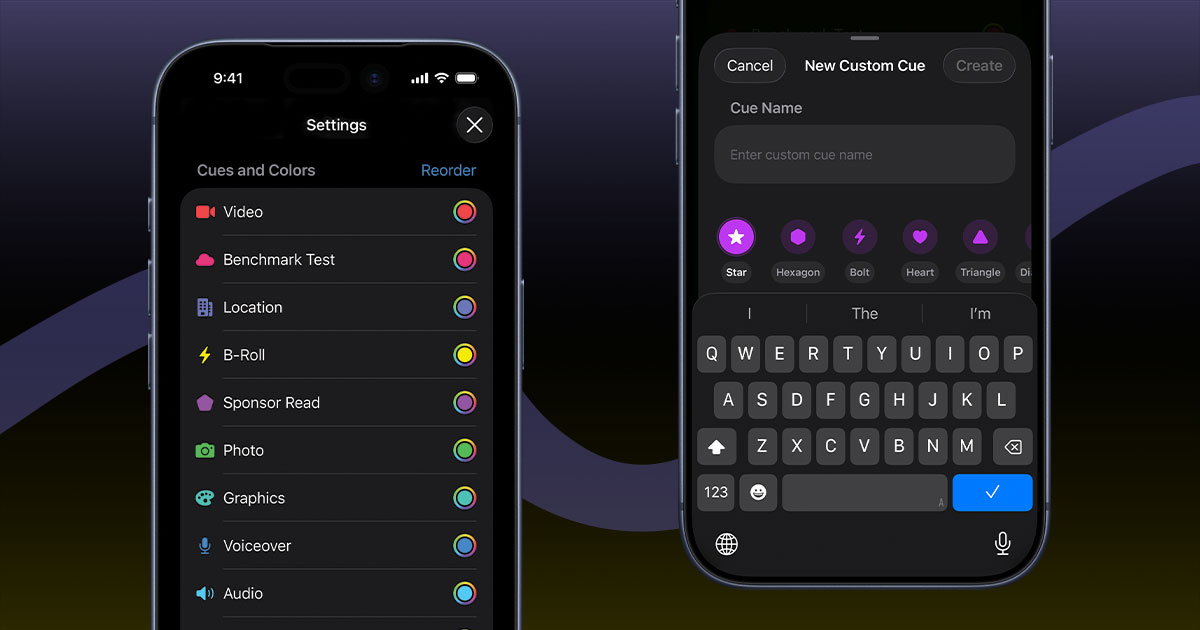
Custom cue types turn Cueboard into your language. Whether you track "Benchmark Test," "Sponsor Read," or "Kitchen Prep", the workflow is the same: set it up once in Settings, summon it inline when inspiration strikes, and keep your keyboard close for lightning-fast access.
1. Define the cue type in Settings
- Open Settings → Cues and Colors.
- Set the Default Color on the Add Custom Cue row.
- Tap Add Custom Cue, then name it and choose a shape.
- Optional: drag custom types above or below the built-in types whenever you toggle Reorder.
Every part of this flow lives in the Settings screen, so you can edit, hide, delete, or recolor a custom cue type directly from its row.
The order you set here is the order you’ll see in the cue type picker while you’re editing (including the above-keyboard cue type accessory).
Why the color matters
Custom cue types are created using whatever Default Color you have set at the moment you create them.
Important detail: the Create Custom Cue sheet is focused on name + shape. You don’t choose a color inside that sheet.
After you’ve created a custom cue type, you can change its color at any time from Settings, using the color picker on that custom cue type’s row.
That same Default Color is also used as your avatar color in a project’s Changes view (the colored circle behind your initials), so collaborators can instantly recognize your updates.
2. Create or select custom cues inline
When you’re editing a project the Cue Bar floats above the keyboard and scrolls horizontally. Tap any type to switch a cue's type instantly, or hit the plus button on the Cue Bar to open the Create Custom Cue sheet without leaving the project.
The Cue Bar mirrors your Settings order and immediately adds and selects the new custom cue type to the list so you can use it right away.
3. Memorize the keyboard shortcut
Mac and iPad hardware-keyboard users get one more superpower: press ⌘⇧A while typing in a cue field to jump straight into custom cue creation.
Cueboard also supports ⌘1–⌘9 to quickly switch cue types while you’re editing.
Keep ⌘⇧A in muscle memory and you’ll never break flow to tweak your taxonomy.
Quick recap
- Settings is the source of truth for names, shapes, order, and colors.
- Inline creation lets you react in the moment. Tap the Cue Bar’s plus button whenever a cue needs a new category.
- ⌘⇧A (Mac/iPad) is the fastest path to the Create Custom Cue sheet.
- Colors propagate everywhere, including your avatar tint inside each project’s change log, so teammates immediately recognize your updates.
Dial in these three moves once and custom cues will feel as natural as the built‑in types.