Jump to:
- From any folder view press the button to create a new project.
- From the main folder view press the button to create a new folder.
- From inside any folder view tap the button and select Add Folder to create a new folder.
- Tap the button to enter Flow Mode
- Type your idea
- Tap the cue icon in the cue type selector to select a new type (or use a custom type)
- Add optional details
- Press Return to commit and create another cue instantly
- The keyboard stays up for rapid, friction-free entry
- Launch Cue Director by tapping the button from All Projects or any Folder
- Type your idea and tap Direct
- Watch Cue Director build your project's shot list
- Swipe left on the cue you want to modify
- Tap Add Sub or Edit Subs
- Tap the button to enter Flow Mode
- Continue adding subcues as needed
- Tap the edit button in any cue list to enter Edit Mode
- Tap a cue or subcue to edit its title and details inline
- Tap its icon to change the cue type
- Edit multiple cues for batch operations
- Enter Reorder Mode by tapping the icon so cues get draggable handles.
- Swipe right on a root cue to nest it under the previous root cue. A short drag gives live haptics so you know when it will snap.
- Only cues without subcues can nest, and the very first root cue can’t be nested because there’s nothing above it.
- Swipe left on a nested subcue to promote it back to the root level; once you pass the threshold the move completes automatically.
- Tap the button to enter Reorder Mode
- Drag cues up or down using the handles
- Hierarchy is maintained during reordering
- Tap the button to import a Visual
- Select from Photos or Files
- Visuals attach directly to cues and sync across devices
- Build visual storyboards by adding multiple Visuals as subcues
- Go to Settings → Cues and Colors Types
- Pick a custom color at the bottom
- Tap Add Custom Cue
- Choose a shape (star, bolt, cloud, circle, square, triangle, heart, diamond, hexagon, seal, pentagon)
- Type the name of the cue type
- Custom types sync across all your devices
- In any project tap the button and select Export or Copy as List
- Export as PDF: High-fidelity, color-coded, perfect for client signoff
- Export as DOCX: Microsoft Word compatible, editable post-production data
- Export as Template: Save as .cbt file to reuse structure for recurring formats
- Copy as List: Clean formatted text with media labels for Notes, Google Docs, or Pages
- Import a template by tapping the button, and select Import Template
- Choose your template from Files
- Export any project as a Cueboard Template (.cbt)
- Templates preserve structure and custom cue metadata
- Visuals and notes are never included in templates
- Perfect for recurring production formats or client workflows
- From any folder view press ⌘N to create a new project.
- From any folder view press ⌘⇧N to create a new folder.
- Press ⌘F to enter Flow Mode
- Type your cue title
- Use ⌘1 through ⌘9 to set the cue type (maps to current type order in Settings)
- Add details if needed
- Press Return to commit and add the next cue instantly
- Press ⌘⇧Return to exit Flow Mode
- Launch Cue Director by pressing ⌘⇧D from All Projects or any folder
- Type your idea and tap Direct
- Watch Cue Director build your project's shot list
- While adding a cue, press ⌘⇧S to open its subcue editor
- Type your subcues in Flow Mode
- Press Return to continue adding more
- Press ⌘⇧Return to exit subcue Flow Mode
- Press ⌘E to enter Edit Mode
- Select a cue or subcue to change its title, details, or type inline
- Use ⌘1 through ⌘9 to quickly change its type
- Batch select multiple cues for operations
- Connect a trackpad (Mac or iPad) and press ⌘R to enter Reorder Mode.
- Swipe horizontally across a cue with two fingers; Cueboard watches those gestures for nesting/unnesting.
- The row slides in real time so you see whether you’re aiming to nest (right) or unnest (left), just like on touch.
- Right swipes nest a cue if it’s eligible (root, no subcues, not a storyboard). Left swipes promote a subcue back to the root.
- Note: If nesting operations feel backwards to you, in Settings → Input Settings, you can flip the direction.
- Press ⌘R to enter Reorder Mode
- Drag cues with visual handles to reorder
- Hierarchy is maintained
- Press ⌘⇧V to import a Visual (storyboard)
- Press ⌘⇧A to create a custom cue type (in Flow/Edit mode) In Settings, go to Cues and Colors Types:
- Pick a custom color at the bottom
- Tap Add Custom Cue
- Choose a shape (star, bolt, cloud, circle, square, triangle, heart, diamond, hexagon, seal, pentagon)
- Type the name of the cue type
- Custom types sync across all your devices Tip: Use keyboard shortcuts for quick selections:
- Use ⌘1 through ⌘9 to quickly change a custom type selection
- Hold ⌘ to show type hints for shortcuts
- Press ⌘⇧I to import a template (.cbt file)
- Templates preserve structure and custom cue metadata
- Perfect for recurring production workflows
- Press ⌘B for bold text
- Press ⌘I for italic text
- Press ⌘U for underline
- Press ⌘⇧Return to exit any mode
- Press Esc to dismiss sheets or cancel actions
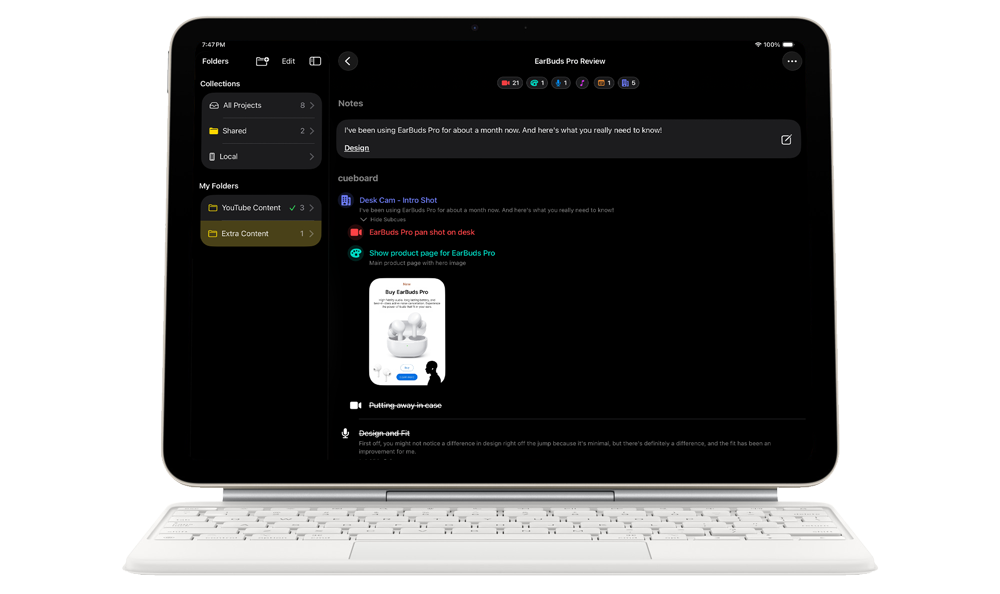
Professional iPad Workflow
Whether you’re building a shortform project on iPad or rearranging a complex shot list on your Mac, every feature is instantly accessible without leaving the keyboard.
Keyboard Shortcuts Reference
⌘F
Flow Mode
Start adding cues rapidly in project
⌘E
Edit Mode
Edit cues and subcues inline
⌘R
Reorder Mode
Drag cues to reorder or nest them
⌘⇧Return
Exit Current Mode
Exit flow, edit, or reorder mode
⌘N
New Project
Create a new project in current folder
⌘⇧N
New Folder
Create a new folder in current view
⌘⇧S
Open Subcue Flow
Add subcues to focused cue
⌘⇧D
Open Cue Director
Generate project with AI (iOS 26+)
⌘⇧A
Create Custom Cue Type
Add a new custom cue type while editing
⌘⇧V
Import Visual
Add storyboard image to project or cue
⌘⇧I
Import Template
Import a .cbt template file
⌘1-9
Change Cue Type
Instantly switch cue type (maps to visible types)
⌘B
Bold Text
Toggle bold formatting (notes only)
⌘I
Italic Text
Toggle italic formatting (notes only)
⌘U
Underline Text
Toggle underline formatting (notes only)
Esc
Dismiss / Cancel
Close sheets, modals, and cancel actions
Return
Commit & Continue
Save current cue and add next in Flow Mode
⌘⇧Return
Save & Close
Save cue/subcue sheet when form is valid
Sharing & Collaboration
Offline Support
- Everything saves locally first—work in airplane mode
- Changes sync automatically when you reconnect
- No accounts, no sign-in, just iCloud
- Uninterruptible offline reliability
What Are Your Colors of Collaboration?
None
Your project
Yellow
You own and share the project
Cyan
Your project in someone else's shared folder
Indigo
A project was shared with you
Purple
Participant project in your shared folder
Gray
Read-only access
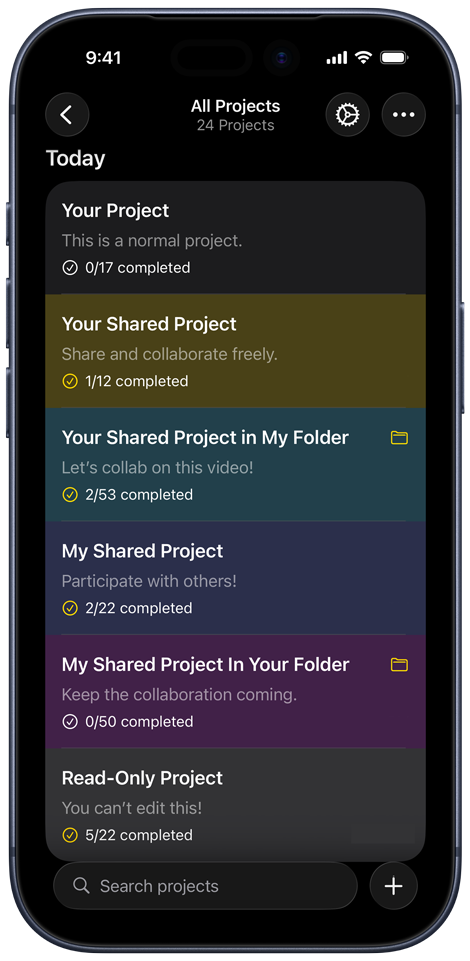
Cueboard Colors of Collaboration